

Download Weblock – Safe Kids Browser, Parental Control, Secure Internet
Overview
Weblock for Kids is a purpose‑built web browser that puts the power of safe‑surfing into the hands of parents. In today’s digital world, letting children explore the internet can feel like opening a door to an unknown wilderness. Weblock addresses that anxiety by offering a simplified interface, a lock‑down “Kid Mode,” and granular control over which sites appear on the home screen.
Parents can curate a whitelist of approved websites, set daily time limits, and receive detailed activity logs that show exactly what their child has viewed, how long they stayed on each page, and whether any attempts were made to change the browser’s settings. The application is free to download and runs on both Windows and macOS platforms, making it a versatile option for families with mixed devices. While the browser does not ship with a pre‑populated list of safe sites, this design choice encourages parents to teach children how to identify trustworthy content, turning the browsing experience into a learning opportunity.
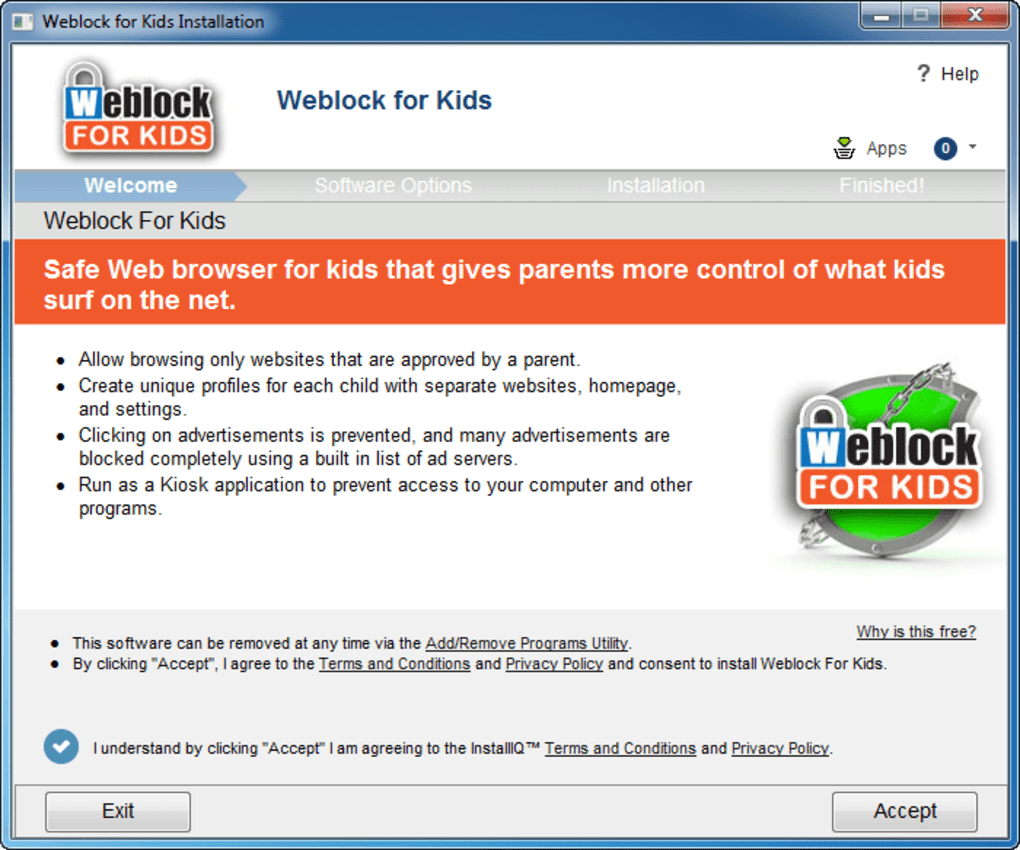
The installer does include optional third‑party offers, but they can be skipped with a few extra clicks. Overall, Weblock delivers a balance of security, educational value, and ease of use that makes it an excellent first‑step browser for younger users before they graduate to mainstream options like Chrome or Firefox.
Key Features of Weblock for Kids
- Custom Safe‑Site List: Parents can add approved URLs that appear as large icons on the home page, giving children quick access to only vetted content.
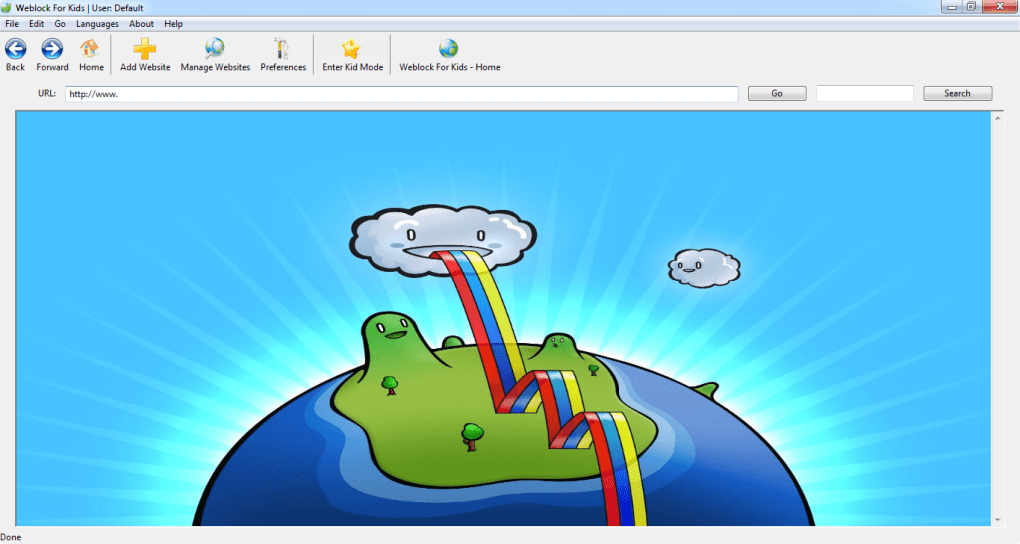
- Kid Mode Full‑Screen Lock: A stripped‑down interface that hides the address bar and search field, leaving only Back, Forward, Home, and Exit buttons.
- Password‑Protected Settings: All parental controls, including the ability to exit Kid Mode, are secured behind a user‑defined password.
- Time‑Limit Scheduling: Set daily or weekly browsing windows, and the browser will automatically lock when the allotted time expires.
- Detailed Activity Logs: Review timestamps, visited URLs, duration per site, and any blocked attempts, all presented in an easy‑to‑read table.
- Search and URL Bar for Older Kids: When Kid Mode is disabled, children can use the standard search field while still being confined to the safe‑site list.
- Cross‑Platform Support: Available for Windows 10/11 and macOS 10.13 or later, ensuring most home computers can run the software.
- Lightweight Design: Minimal RAM and CPU usage, so the browser runs smoothly even on older machines.
Installation, Setup, and Daily Usage
Step‑by‑Step Installation
Begin by downloading the installer from the official Weblock website. The file is a small .exe for Windows or .dmg for macOS. Run the installer and follow the on‑screen prompts. During the process you will encounter optional offers to install additional software; these can be declined by clicking “No thanks” or unchecking the corresponding boxes. After the installer finishes, launch Weblock from the desktop shortcut or the Applications folder.
Initial Configuration
On first launch, Weblock asks you to create a parental password. This password protects every setting, including the ability to exit Kid Mode. Next, you’ll be prompted to build your safe‑site list. Simply enter the URLs of educational sites, kid‑friendly video platforms, or any other resources you trust. Each entry appears as a colorful tile on the home screen, making navigation intuitive for children.
Activating Kid Mode
To enable Kid Mode, click the lock icon in the top‑right corner and enter your password. The browser will switch to a full‑screen view that hides the address bar and disables free‑form searching. Only the Home button (which shows your safe‑site tiles), Back, Forward, and an Exit button remain visible. Attempting to type a new URL or press a key combination that would exit full screen will be blocked, and an alert will be logged.
Setting Time Limits and Reviewing Logs
From the Settings menu, select “Time Limits” and define the allowed browsing window for each day of the week. When the timer reaches zero, Weblock automatically returns to the lock screen, preventing further access until the next scheduled window. To monitor activity, open the “Logs” tab. Here you’ll see a chronological list of every visited site, the duration of each session, and any blocked attempts to change settings. The log can be exported as a CSV file for deeper analysis or record‑keeping.
Everyday Use Tips
Encourage children to use the Home screen tiles to explore the curated list. For older kids who need occasional freedom, temporarily disable Kid Mode using your password, allow them to browse a specific site, then re‑enable the lock. Regularly update the safe‑site list as new educational resources become available, and review the logs weekly to spot any emerging interests or potential concerns.
Final Verdict: Compatibility, Pros & Cons, FAQ, and How to Get Weblock
Compatibility and System Requirements
Windows 10/11 (64‑bit) and macOS 10.13 or later are officially supported. The application requires at least 2 GB of RAM and 100 MB of free disk space. Because Weblock is built on a lightweight rendering engine, it runs comfortably on older laptops and desktops that meet these minimal specifications. No additional plugins or extensions are needed, and the browser works offline for any locally saved content.
Pros and Cons
- Pros
- Intuitive safe‑site tile interface that children understand instantly.
- Robust Kid Mode with password protection and full‑screen lock.
- Comprehensive activity logs that give parents visibility into browsing habits.
- Customizable time limits to enforce healthy screen‑time habits.
- Lightweight and fast, even on modest hardware.
- Cons
- No pre‑installed list of approved sites, requiring initial setup effort.
- Installer includes optional third‑party offers that some users may find intrusive.
- Lacks advanced parental controls like content filtering based on keywords.
- No mobile app version; currently limited to desktop operating systems.
Frequently Asked Questions
Can I block specific categories of websites without adding them to a safe list?
Weblock currently relies on a whitelist approach, meaning only sites you explicitly add are accessible. There is no built‑in category blocker, but you can achieve similar results by simply not adding sites from unwanted categories.
Is the activity log stored locally or in the cloud?
All logs are stored locally on the device in an encrypted file. You can export the log to CSV for backup, but Weblock does not sync data to a cloud service.
Can I set different time limits for each child?
Weblock supports a single password and time‑limit profile per installation. To manage multiple children, you can create separate Windows or macOS user accounts, each with its own Weblock configuration.
What happens if my child tries to exit Kid Mode without the password?
The attempt is blocked, an alert is shown, and the event is recorded in the activity log. The browser remains in Kid Mode until the correct password is entered.
Is Weblock free forever, or are there hidden fees?
Weblock is free to download and use. There are no subscription fees. The only optional cost is if you choose to purchase the third‑party offers presented during installation, which you can decline.
Conclusion and Call‑to‑Action
Weblock for Kids delivers a focused, parent‑centric browsing experience that balances safety with the freedom children need to explore educational content. Its simple tile‑based home screen, secure Kid Mode, and transparent activity logging make it a trustworthy choice for families seeking a first‑step internet browser. While the absence of a default safe‑site list and the presence of optional installer offers are minor drawbacks, they do not outweigh the core benefits of a lightweight, password‑protected environment.
If you’re ready to give your child a safe online playground while keeping full control in your hands, download Weblock now. Install the application, set up your safe‑site list, and enjoy peace of mind knowing your kids are browsing securely.
Weblock offers an excellent blend of simplicity and parental control. The whitelist approach encourages active involvement from parents, and the activity logs provide valuable insight into a child’s browsing habits. Minor inconveniences like the optional installer offers can be easily ignored, making the overall experience very positive.






